
DinnersDoneQuick is pleased to announce that we have acquired ThePinterTestKitchen food blog. I was inspired so much by their recipes and community! We welcome all of their users, and hope to be able to continue to provide content that you’ll love.
The PinterTest Kitchen offered a wide variety of recipes, including main courses, easy side dishes, decadent desserts, and even an assortment of drinks to round out your meals!
Recipes were focused around exactly what the name sounds like – Pinterest!

The masterminds of PinterTest tested and tweaked all of the great drool worthy posts you’ve seen on Pinterest to make them something truly special (or found out if they were a total bust so you don’t have to).
Here at Dinners, we strive to bring you easy recipes that use the air fryer or the microwave (though I’ve started dabbling in drink recipes as well)! Not only should food taste great, but it should be simple to make and quick enough to fit into your busy life.
So, in short, I think it’s a great fit!
I’ll be publishing some new recipes of my own that were inspired by the PinterTest Kitchen’s most popular dishes. If you had a favorite previously, you might see it in a whole new light! We’ve also got a ton of other great recipes for you to try, so feel free to explore.
About the PinterTest Kitchen
The PinterTest Kitchen was established in 2012 as a blog centering around food on Pinterest. It was founded by sisters Allison and Jessica, along with their mom, Sharon.
These ladies are passionate about food, family, and fun, and it really shows in the way they ran their blog. Each had a variety of different experiences and interests that they brought, proving that the team effort really gets things done.
In addition to trying out recipes on Pinterest, they also created some of their own while participating in a huge variety of different events both in person and across the online community!
If you participated or are interested in some more information about those events, the details of each are below.
Holiday Cookie Exchange
The Holiday Cookie Exchange was an annual program where various bakers, bloggers, and friends got together with coordination from Food Blogger Love to do a cookie swap.
Each participant was given 3 others to send their favorite holiday cookies to, and they’d receive 3 in return. What a great way to not only experiment in your own baking, but get to enjoy yummy treats from others as well!
It’s the online equivalent of giving and receiving cookie trays, and I am totally here for it! Unfortunately, FBL is no longer around, but that doesn’t mean that the cookie has to crumble there.
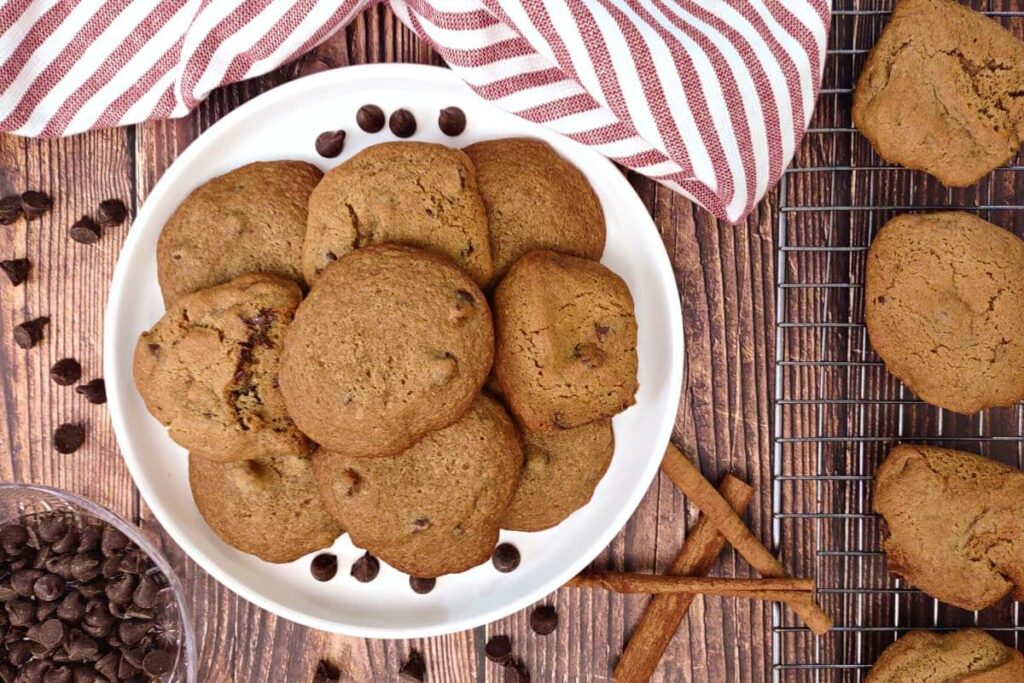
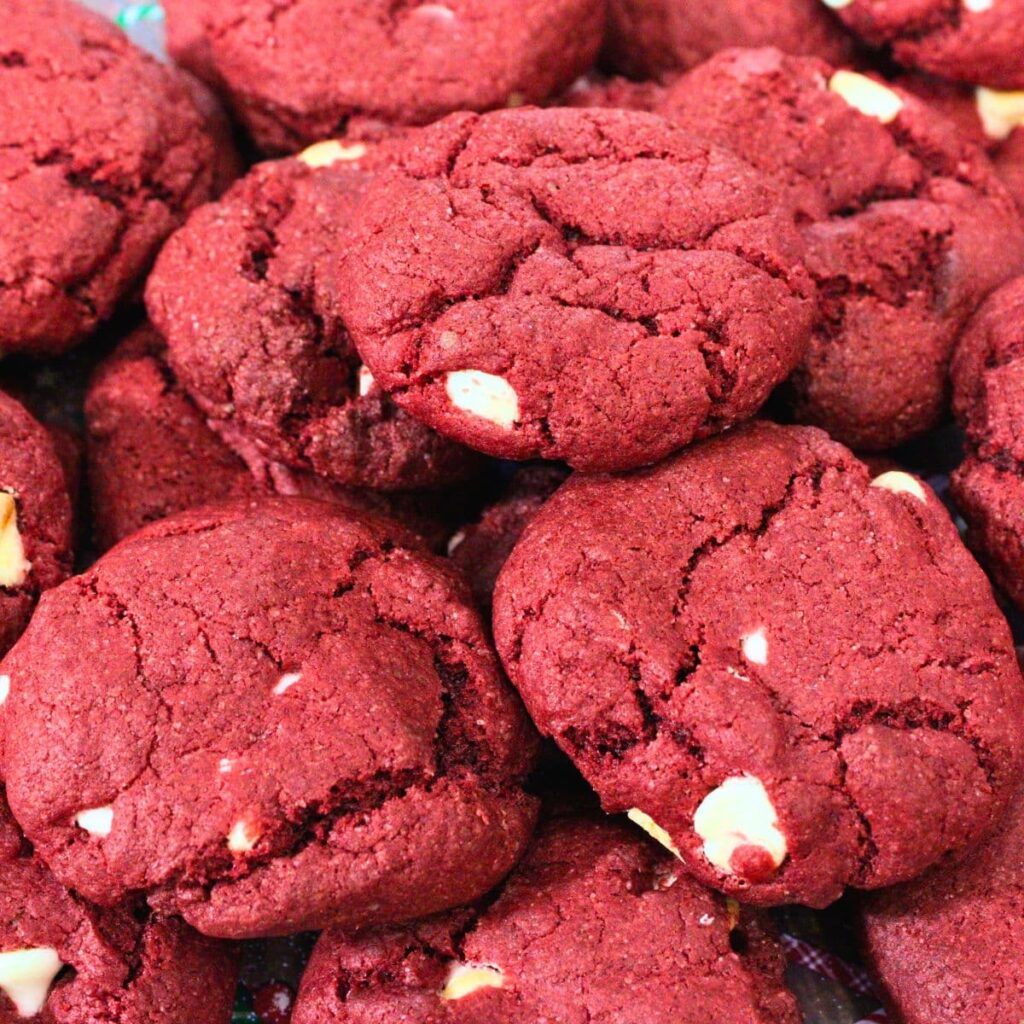
Here are some PinterTest favorite holiday cookie recipes that have been recreated DinnersDoneQuick style:
- Air Fryer Gingerbread Cookies
- Cinnamon Chocolate Chip Cookies
- Air Fryer Cake Mix Cookies (Red Velvet)

If you were a fan of any of those recipes, then I’ve got even more recipes for your holiday cookie tray that you’re going to love:
- Microwave Peppermint Bark
- Easy Air Fryer Shortbread Cookies
- Air Fryer Meringue Cookies
- Simple Air Fryer Sugar Cookies
There are so many great options when it comes to holiday cookies. I’m a sucker for simple sugar cookies, which you can decorate for any occasion (so I enjoy them even when it’s not the holidays)!
For even more ideas and inspiration, make sure to check out my best Air Fryer Christmas Cookies compilation!
Choctoberfest
Choctoberfest, as the name implies, was an annual event centered around a love of chocolate! The PinterTest Kitchen brought together a community of chocolate lovers to share their favorite recipes.
It generally occurred in October, meaning that it was probably a great opportunity to use up some of that leftover Halloween candy!
In a one week span, over 70 bloggers, foodies, and friends shared over 200 unique chocolate based recipes. Now that’s impressive!
Despite what you might think, it wasn’t just limited to desserts – I’ve definitely seen some savory options in there as well!
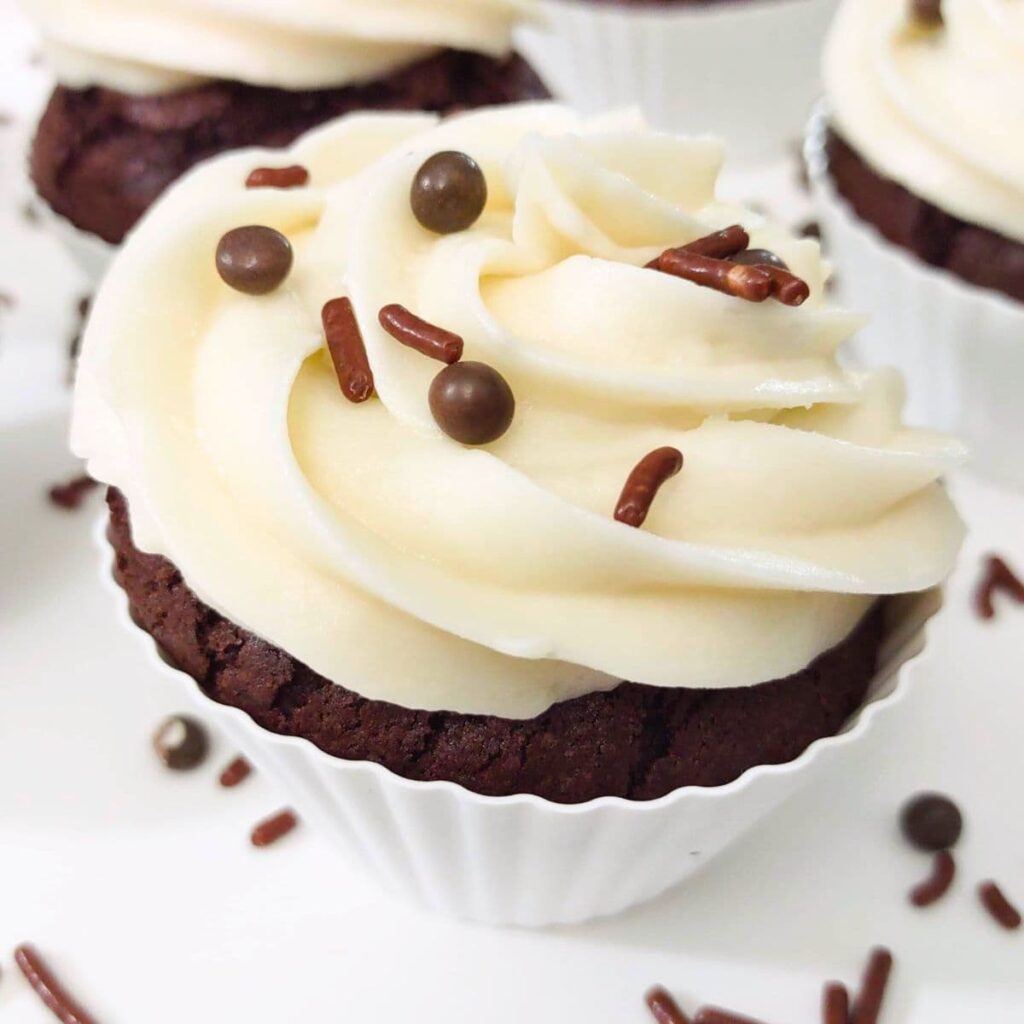
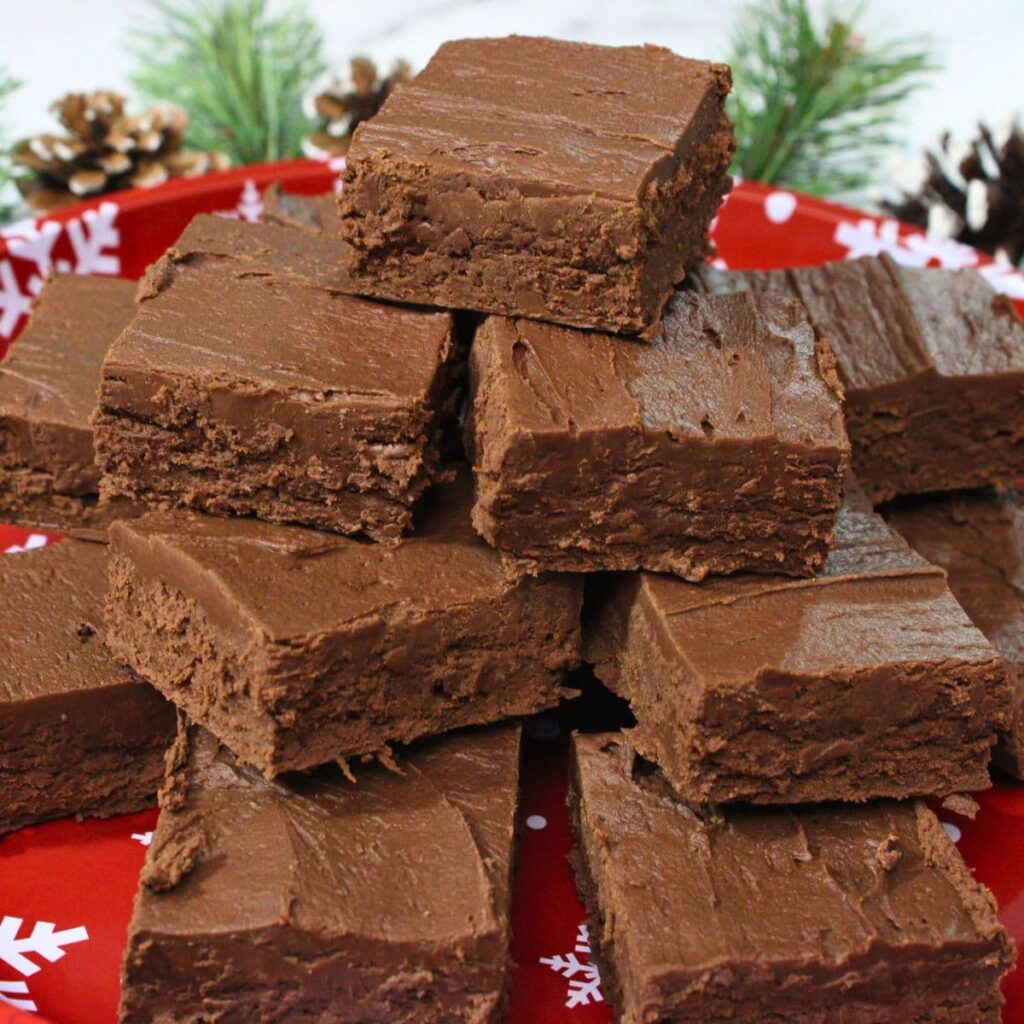
If you’re looking for some PinterTest Choctoberfest favorites, here are the DinnersDoneQuick versions to check out:
- Chocolate Mocha Cupcakes (With Maple Buttercream)
- Two Ingredient Microwave Fudge Recipe
- Air Fryer Chocolate Souffle
- Mulled Wine Brownies Recipe
- Chocolate Chess Pie Recipe
- Air Fryer Black Bottom Cupcakes
- Easy Tiramisu Mug Cake
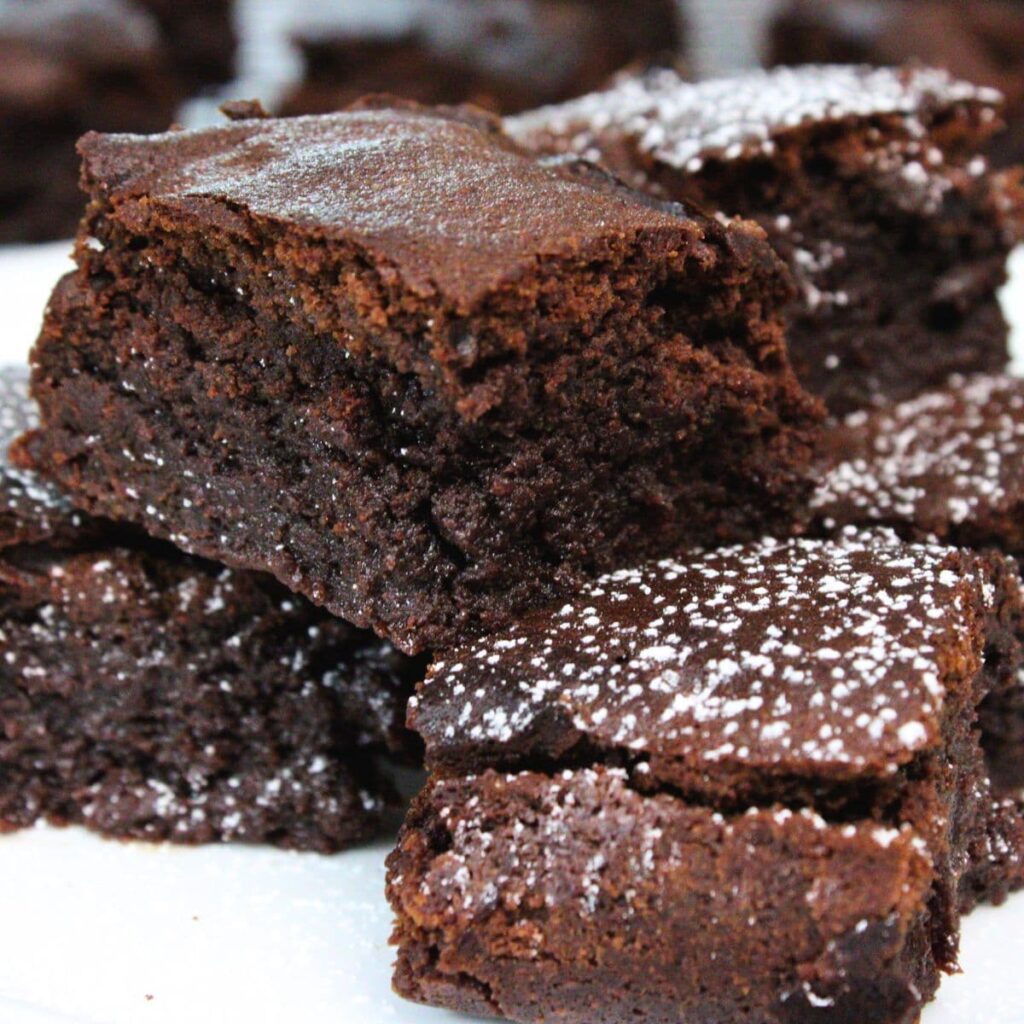
For some other dishes to satisfy your chocolate cravings, check out some of my favorite DinnersDoneQuick options too:
- Trader Joe’s Lava Cake in the Air Fryer
- Easy Microwave Chocolate Sauce
- Microwave Chocolate Covered Strawberries
- Air Fryer Double Chocolate Muffins
- Hot Chocolate Martini
- Raspberry Chocolate Overnight Oats
- Chocolate Covered Cherry Martini
- Peanut Butter Chocolate Martini
- Chocolate Covered Strawberry Martini
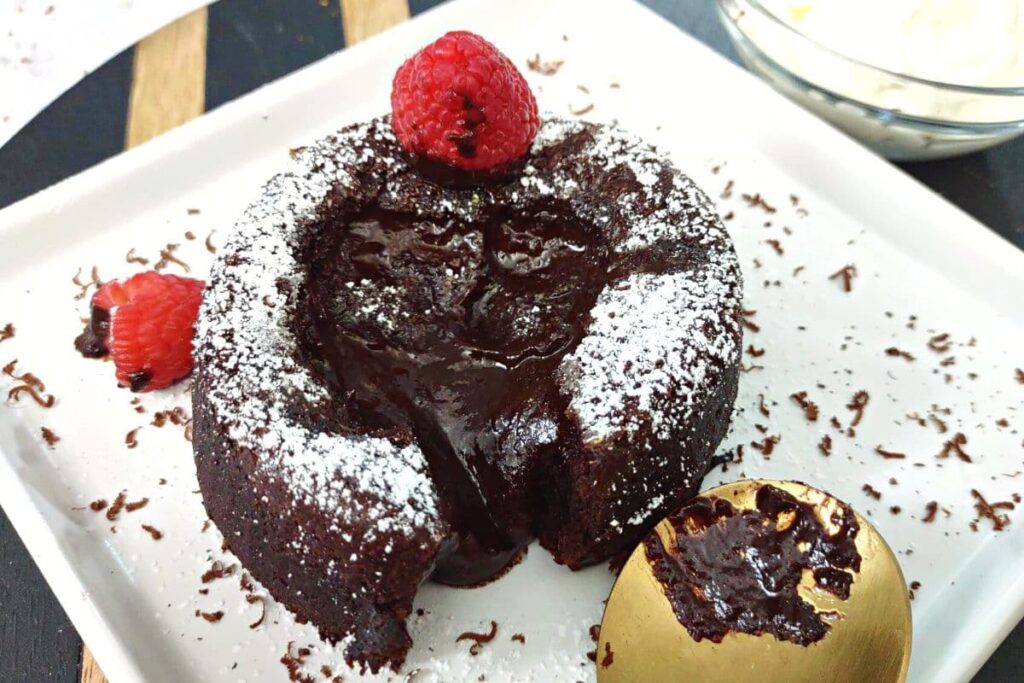
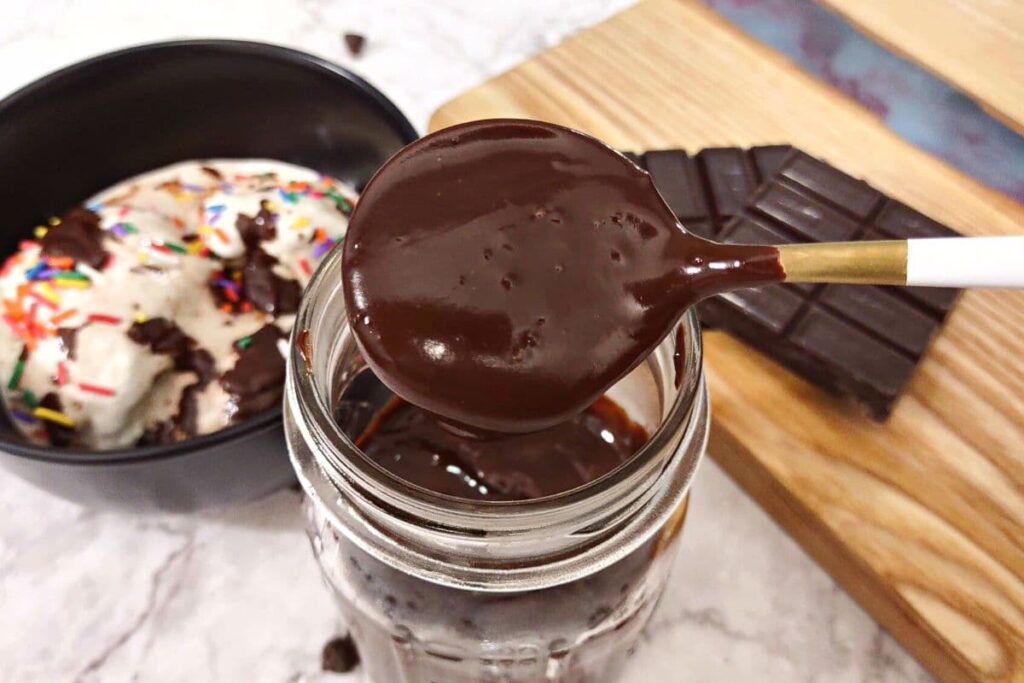

There are so many great ways to utilize chocolate, but desserts and drinks are definitely some of my favorites! I particularly like chocolate covered strawberries since you can use colored candy melts to make them for literally any holiday or celebration!
Brunch Week
In a similar vein to Choctoberfest, Brunch Week was a week-long event hosted in April or May. It was a time for bloggers and foodies to get together and showcase all of their great brunch recipes!
Hundreds of recipes by dozens of unique creators were submitted and showcased each year. Of course, since it’s brunch food, that can mean a vast amount of ideas!
There’s breakfast fare, sweet breads, lunch offerings, and don’t forget the drinks!
A lot of manufacturers even got in on it, supplying new products and ingredients to try. That’s always a great way to step out of your comfort zone! Who knows, maybe some new favorites were found along the way!
If you’re looking for some of the amazing PinterTest Kitchen Brunch Week recipes, here are the new versions of some of their most popular dishes:
- Cranberry Orange Mimosas
- Fluffy Pumpkin Cinnamon Pancakes
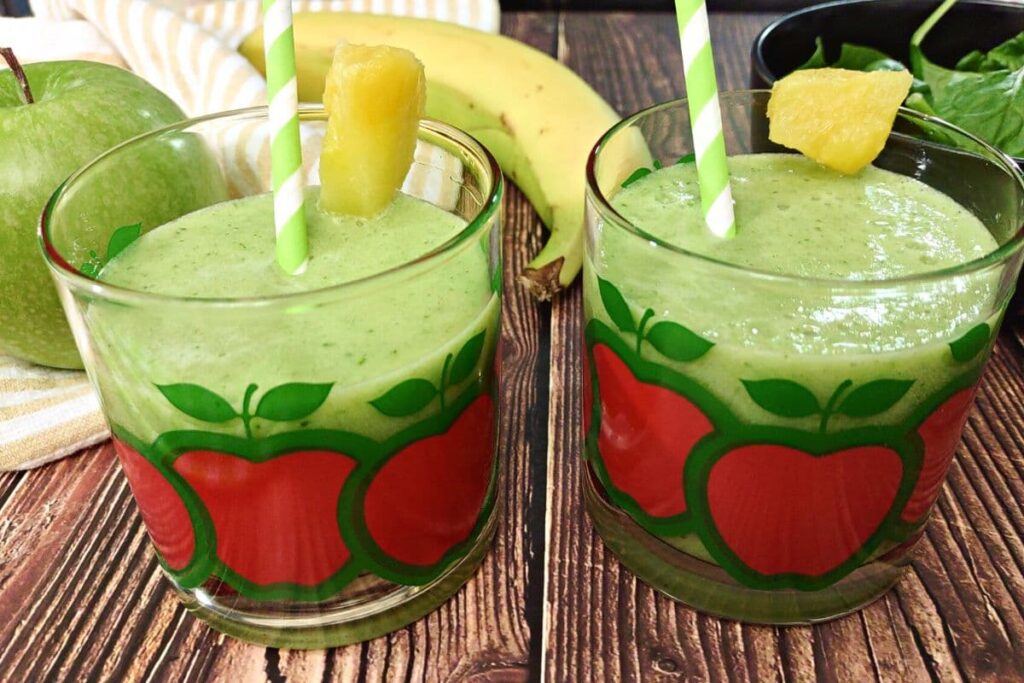
- Pineapple Green Apple Smoothie
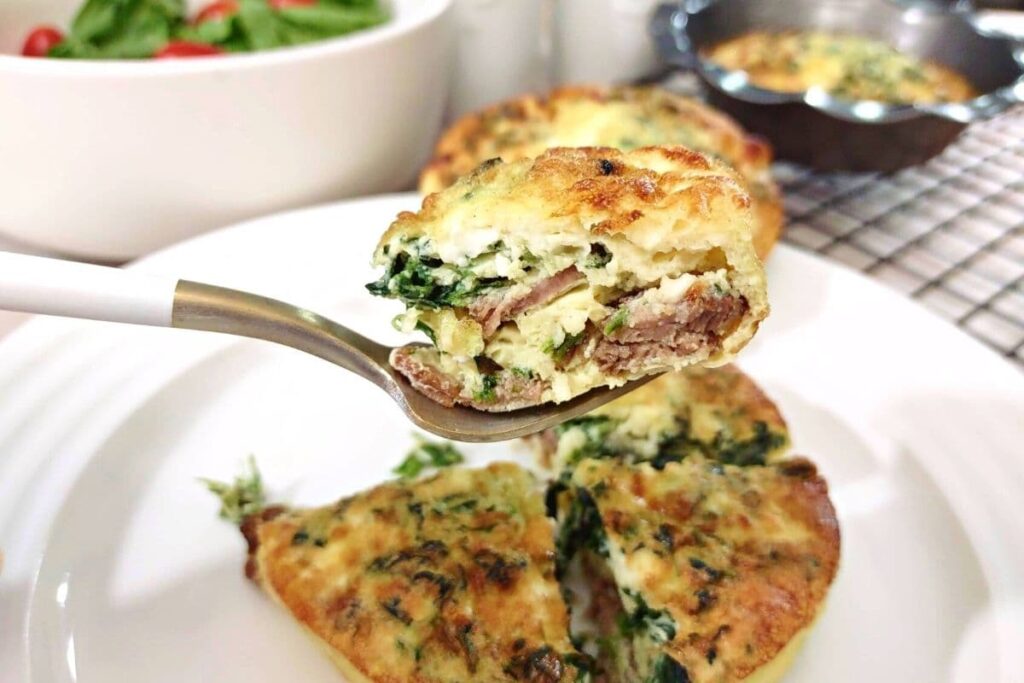
- Crustless Steak and Spinach Mini Quiche
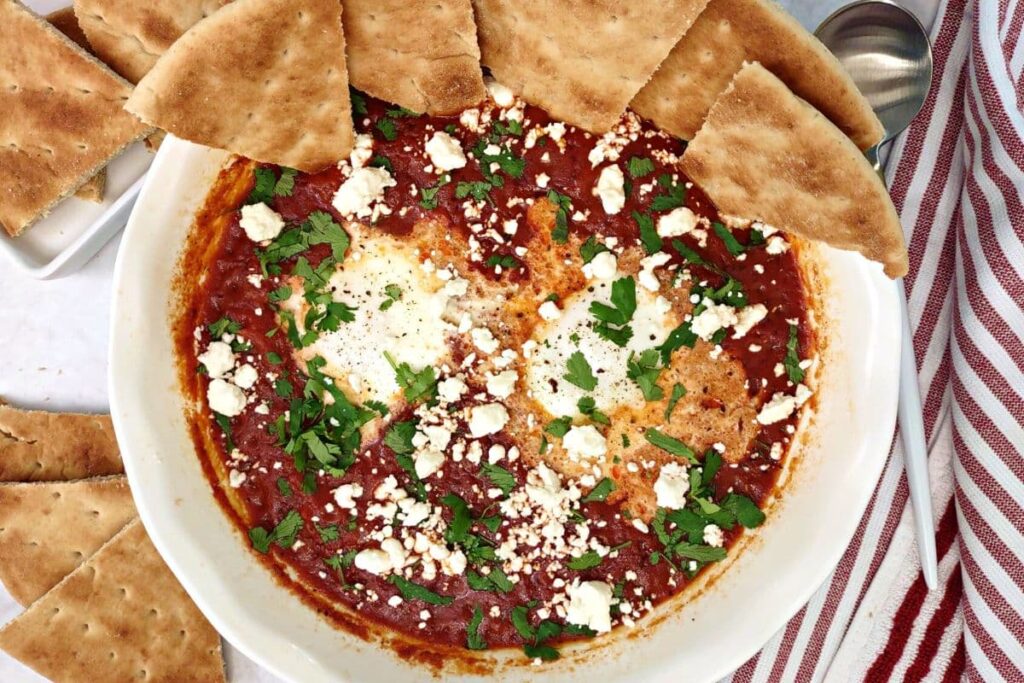
- Easy Microwave Shakshuka
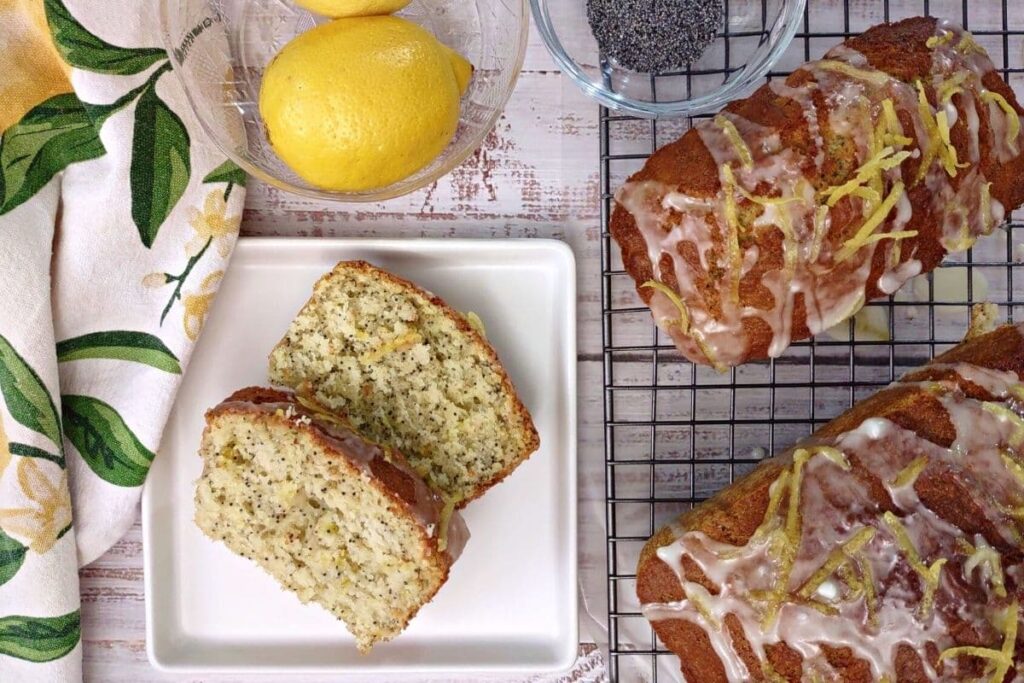
- Sweet Lemon Poppy Seed Bread
- Banana Chocolate Chip Scones
- Air Fryer Cheese Danish
- Blueberry Pie Smoothies

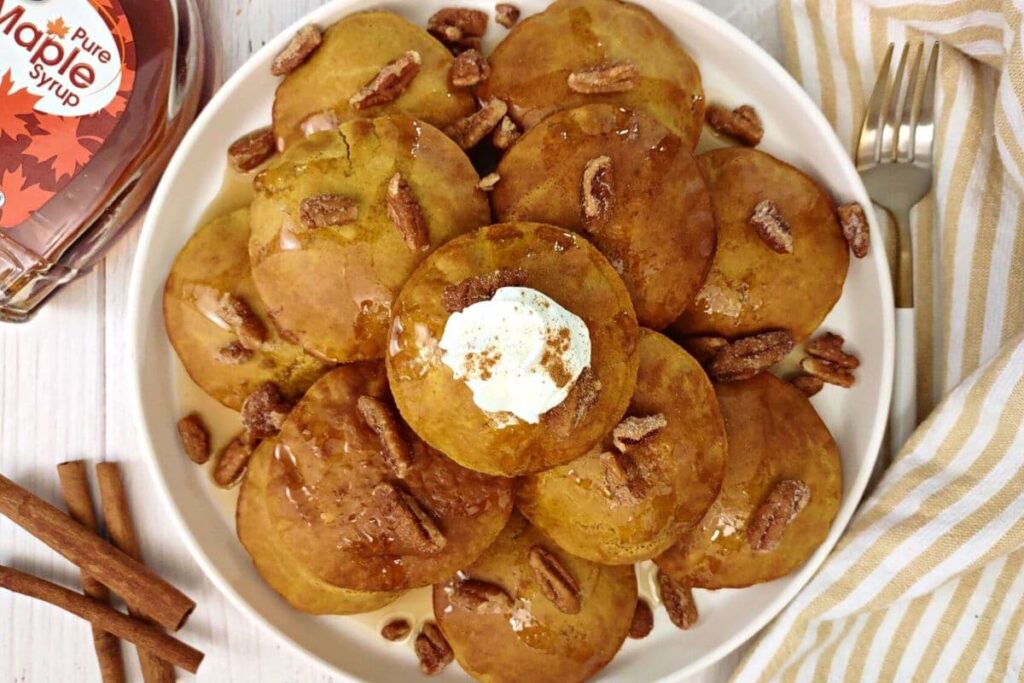
I’m always looking for new and exciting dishes to add to my brunch rotation throughout the year. For some other great brunch recipes, check out these DinnersDoneQuick originals:
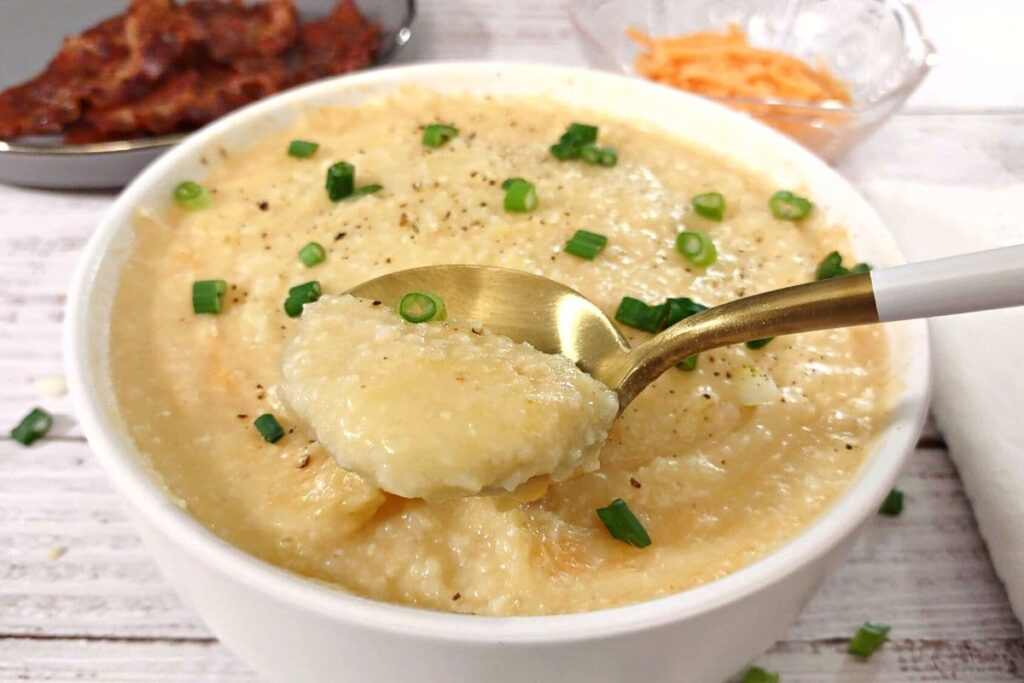
- Creamy Microwave Garlic Cheese Grits
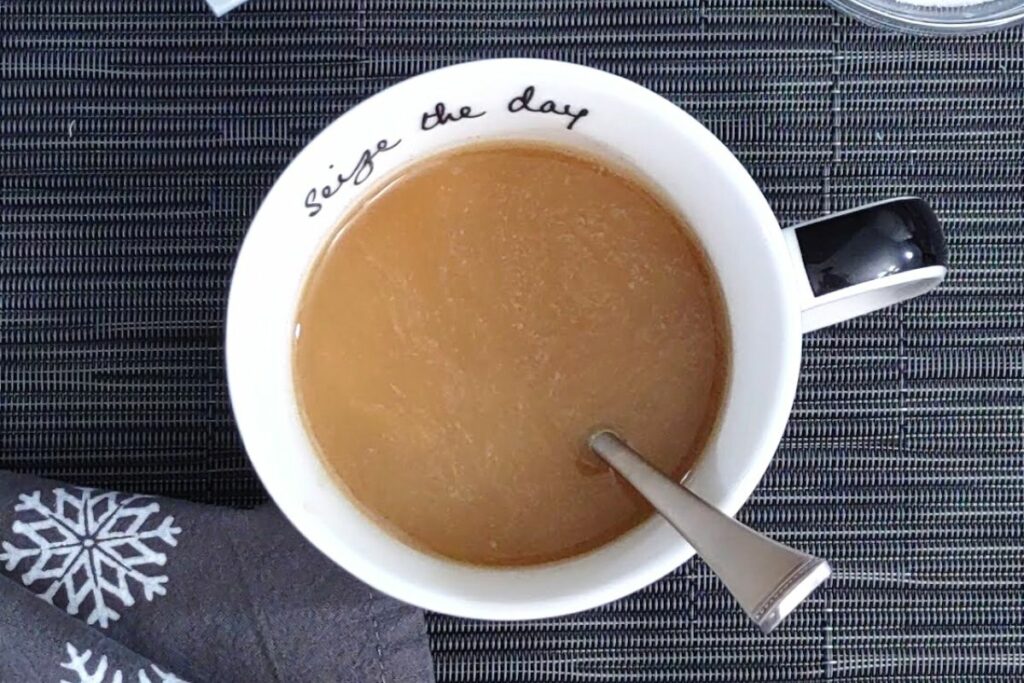
- How to Make Brewed Coffee in the Microwave
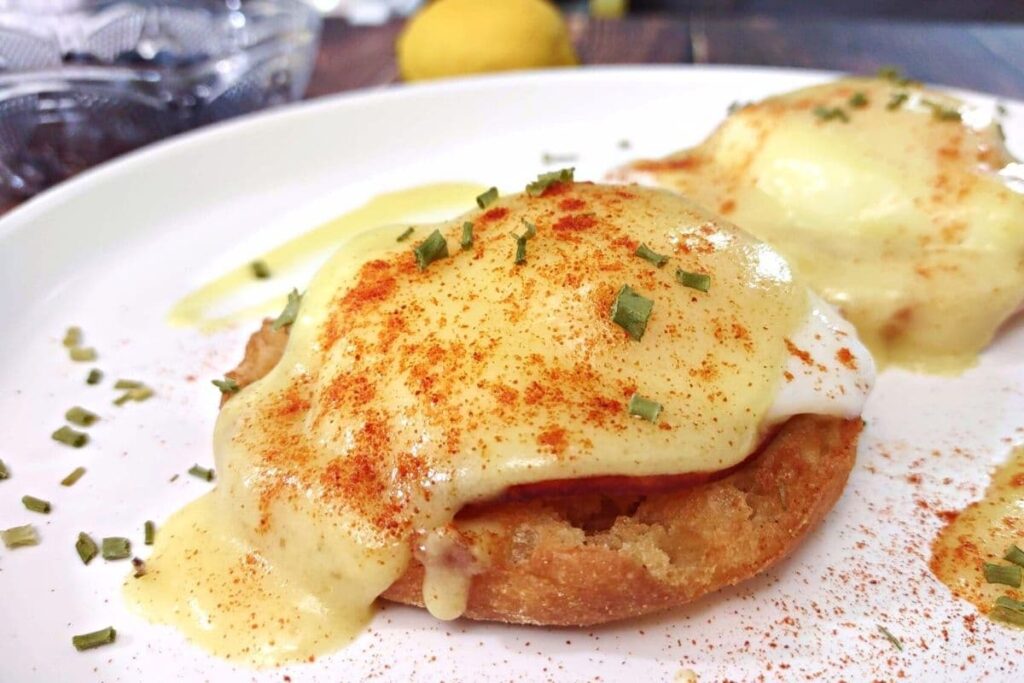
- Amazing Air Fryer Eggs Benedict
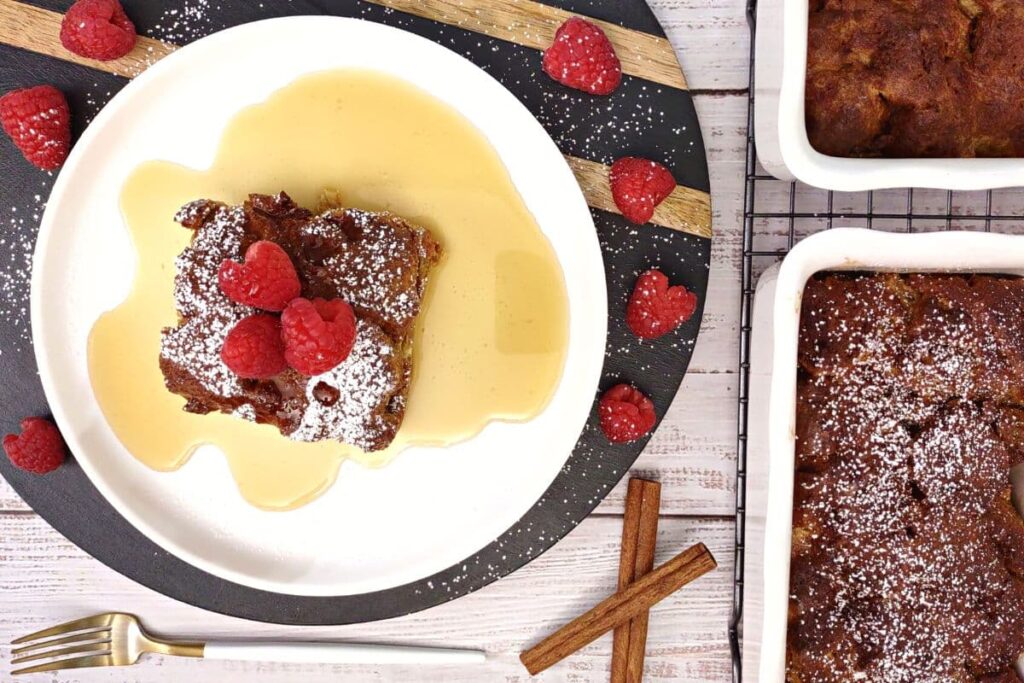
- Creamy Air Fryer French Toast Casserole
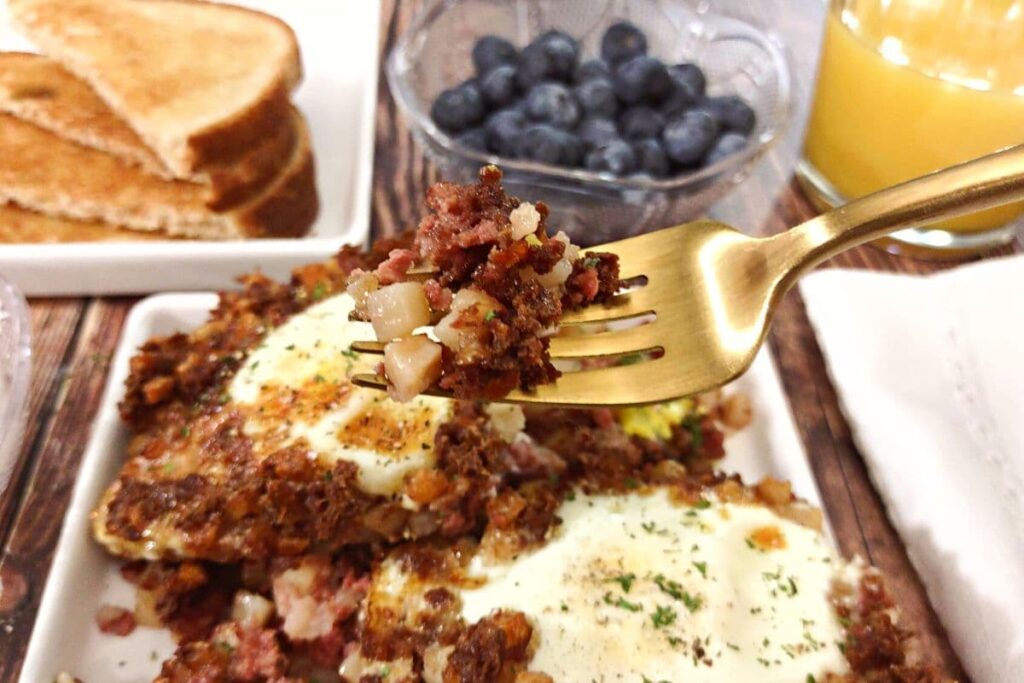
- Easy Canned Corned Beef Hash and Eggs
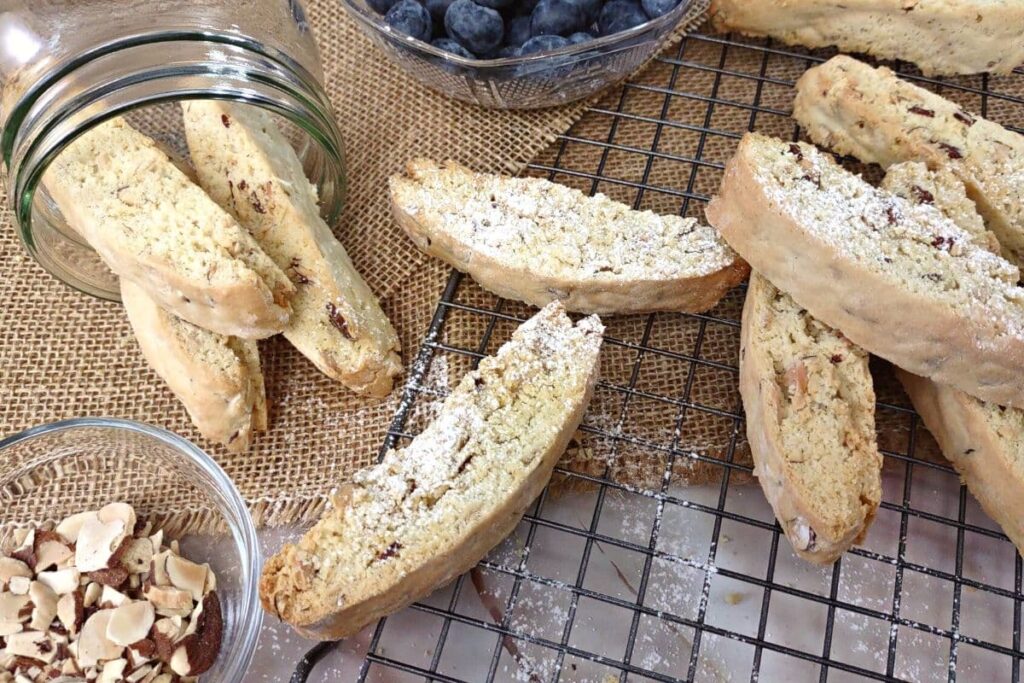
- Crunchy Air Fryer Orange Almond Biscotti
- Air Fryer Ham and Cheese Quiche With Crust
- How to Toast a Bagel in the Air Fryer
- Blueberry Muffins in the Air Fryer
- Pillsbury Orange Rolls in the Air Fryer
- Air Fryer Huevos Rancheros
One of my favorite things about the air fryer is the ability to start with frozen foods for convenience and make them come out amazing! If you’re trying to do breakfast or brunch and don’t have much time, consider these frozen options for a leg up on preparation:
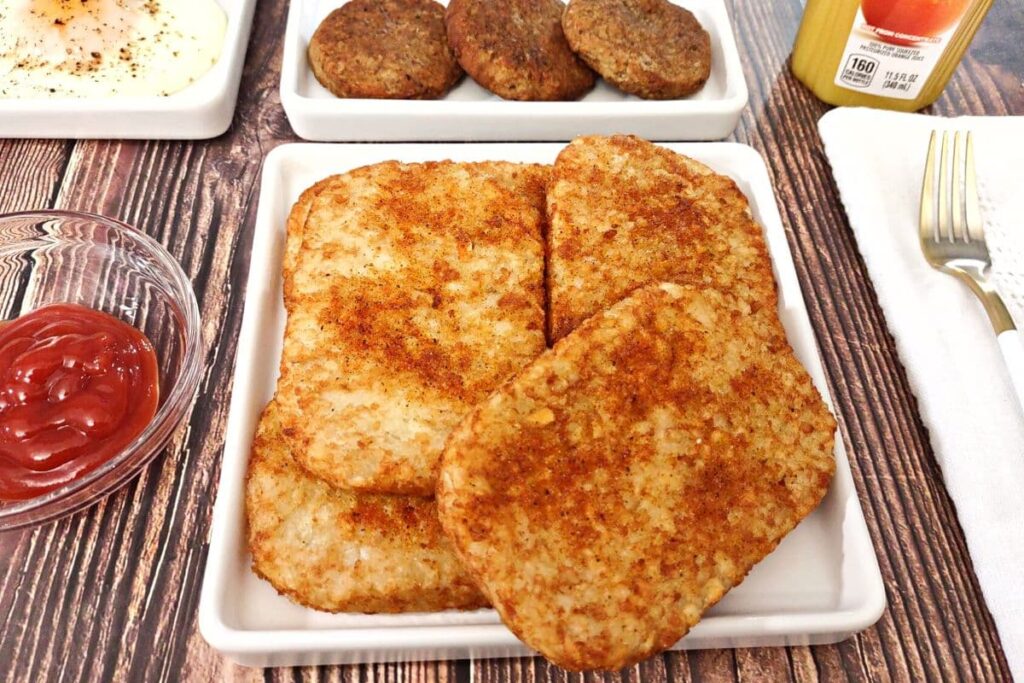
- Trader Joe’s Frozen Hash Browns in the Air Fryer
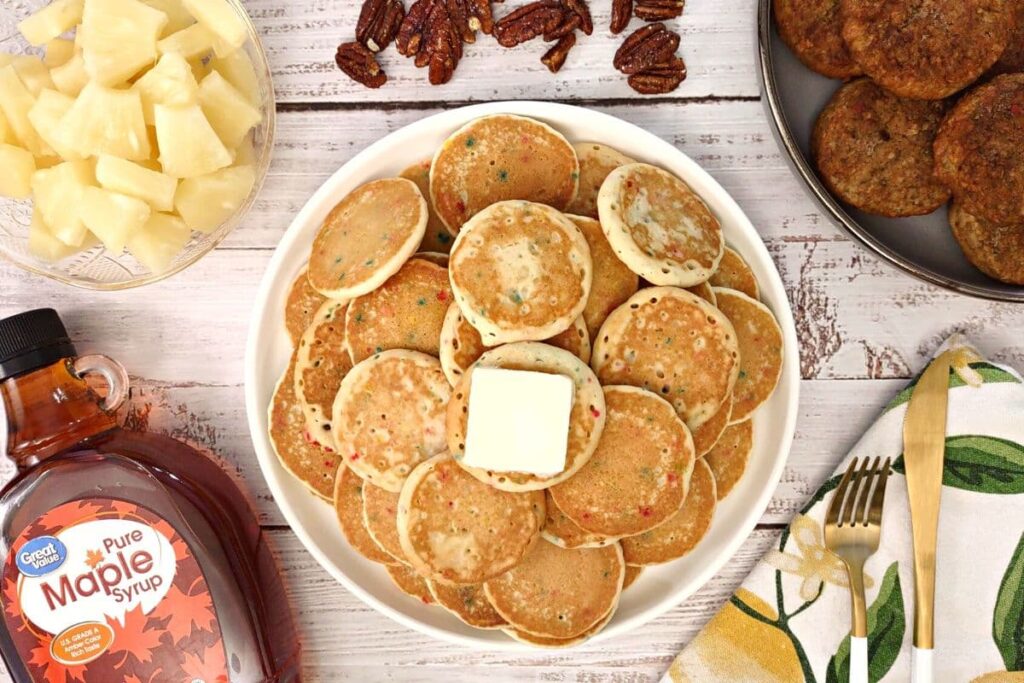
- Frozen Pancakes in the Air Fryer
- How to Cook Frozen French Toast Sticks in the Air Fryer
- Frozen Sausage Patties in the Air Fryer
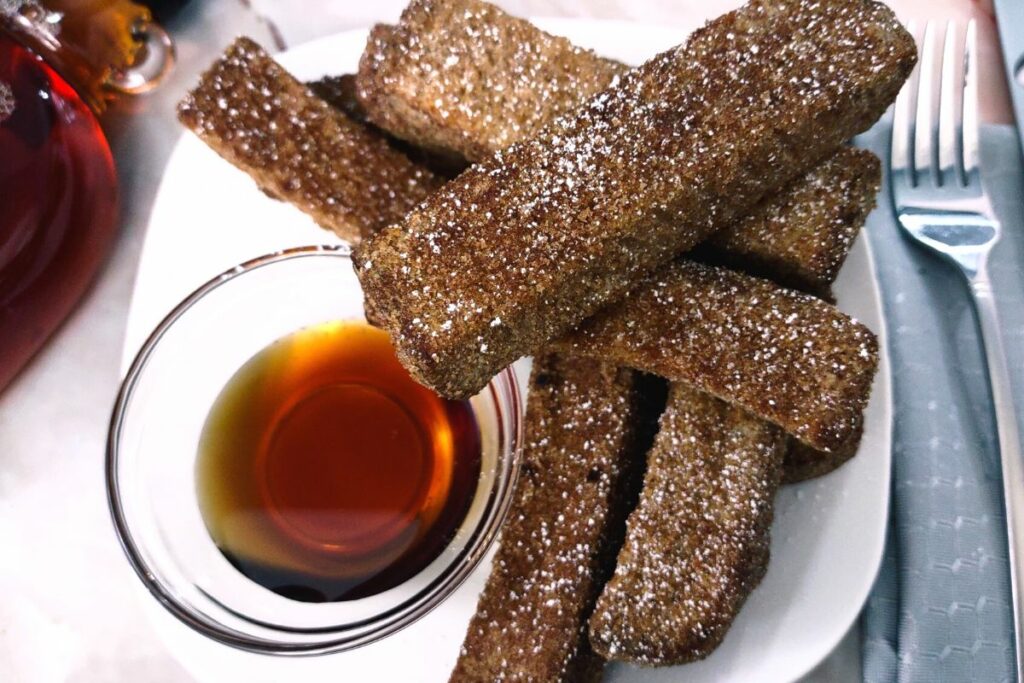
No matter how many people you’re feeding or how much time you have (especially during the busy holiday season) there’s always a way to make a great brunch!
Cookout Week
In the heat of the summer (that is, June or July around here) what’s better than a cookout? Cookout Week was an event aimed to showcase all the best recipes for your backyard barbecues and family get-togethers.
That means a lot of grilling, fresh fruits, cold sides, and of course a cold beverage to go with it.
It’s another place where I find the air fryer fits right in – a way to cook and bake items without using the oven. That means no having to heat up the whole house, which is a huge win in the summertime heat!
Of course, that also means some new spins on PinterTest Kitchen classic Cookout Week recipes, such as:
- Honey Sriracha Chicken in the Air Fryer
- Air Fryer Hasselback Potatoes With Cheese
- Creamy Air Fryer Potato Salad
- Strawberry Cream Pies in the Air Fryer
- Fresh Blueberry Cake in the Air Fryer
- Air Fryer Blueberry Hand Pies
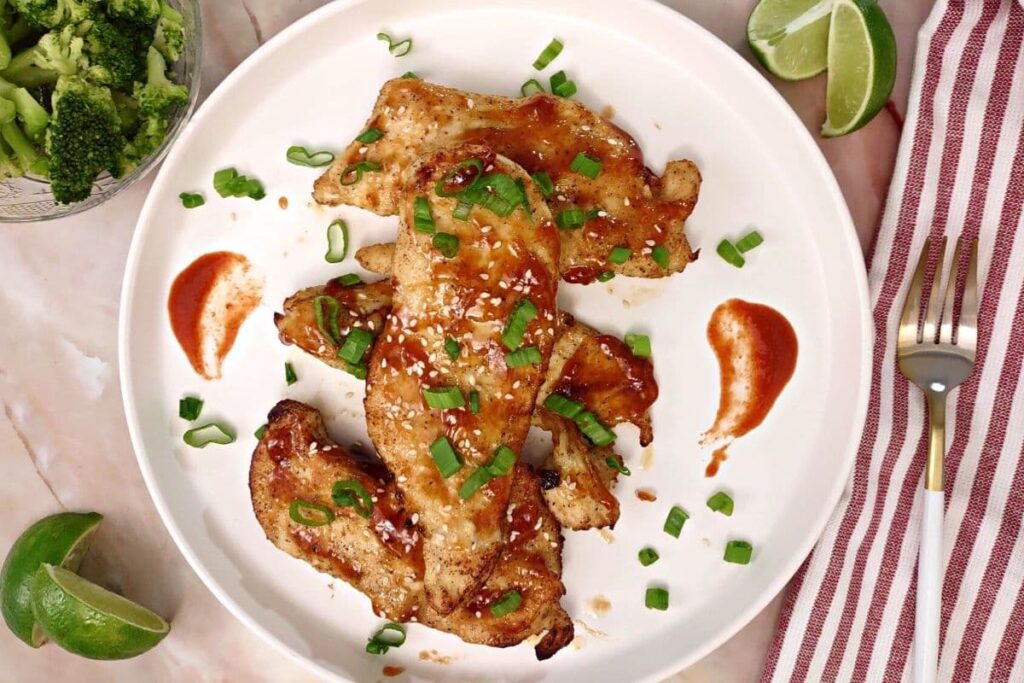
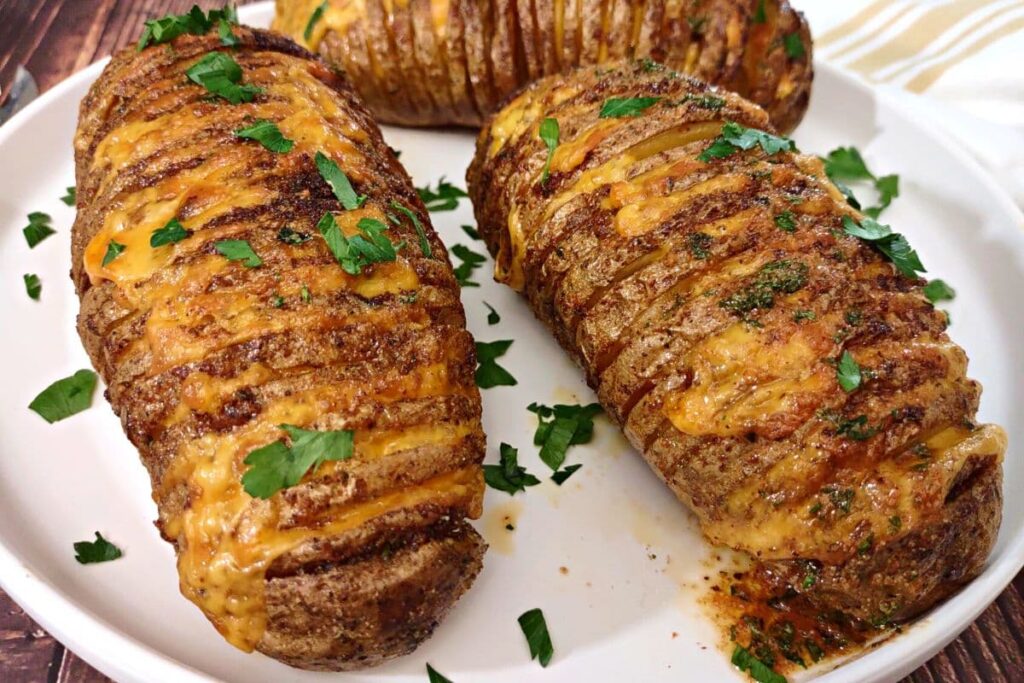
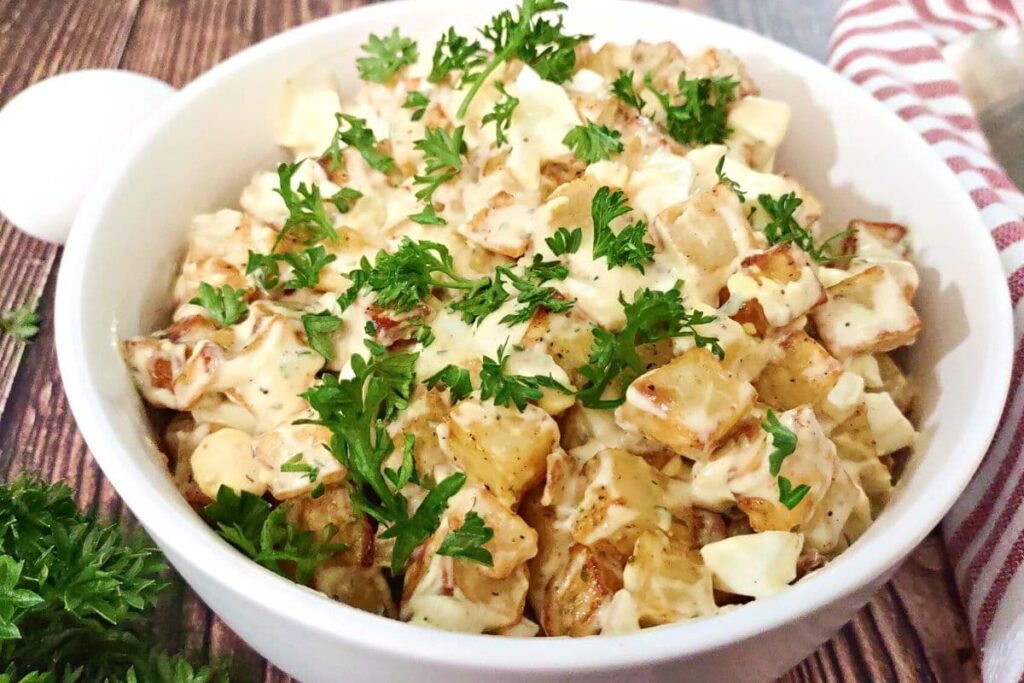
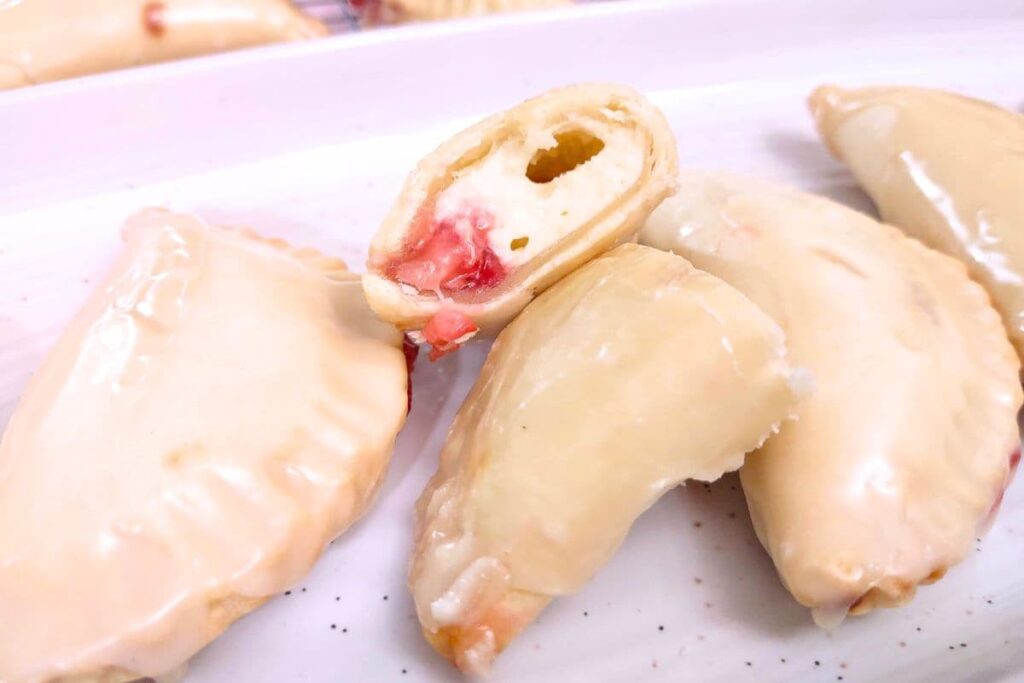
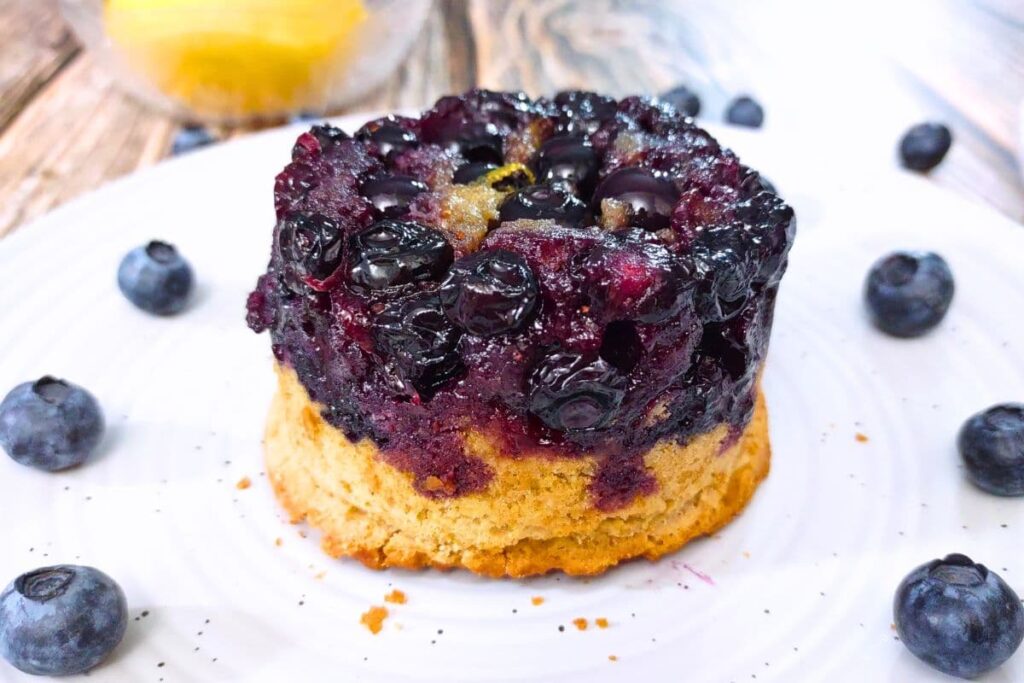
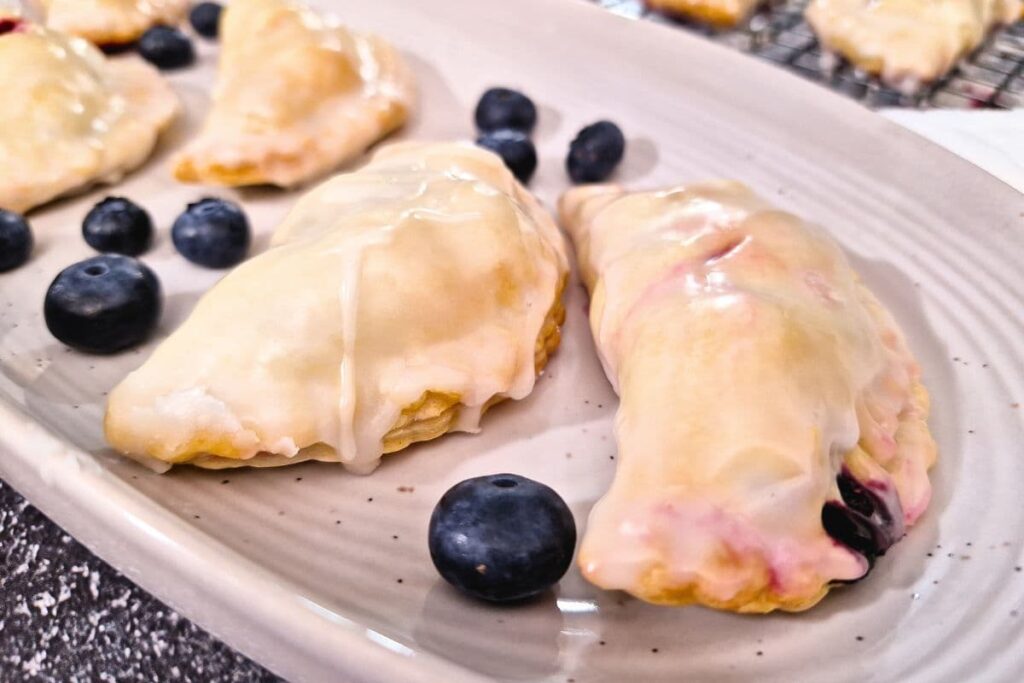
Since I’m a big fan of enjoying a good cookout, that means there’s also a bunch of new favorites to find here on DinnersDoneQuick, like:
- Air Fryer Frozen Corn on the Cob
- Pillsbury Cornbread Swirls in the Air Fryer
- Bacon Wrapped Hot Dogs in the Air Fryer
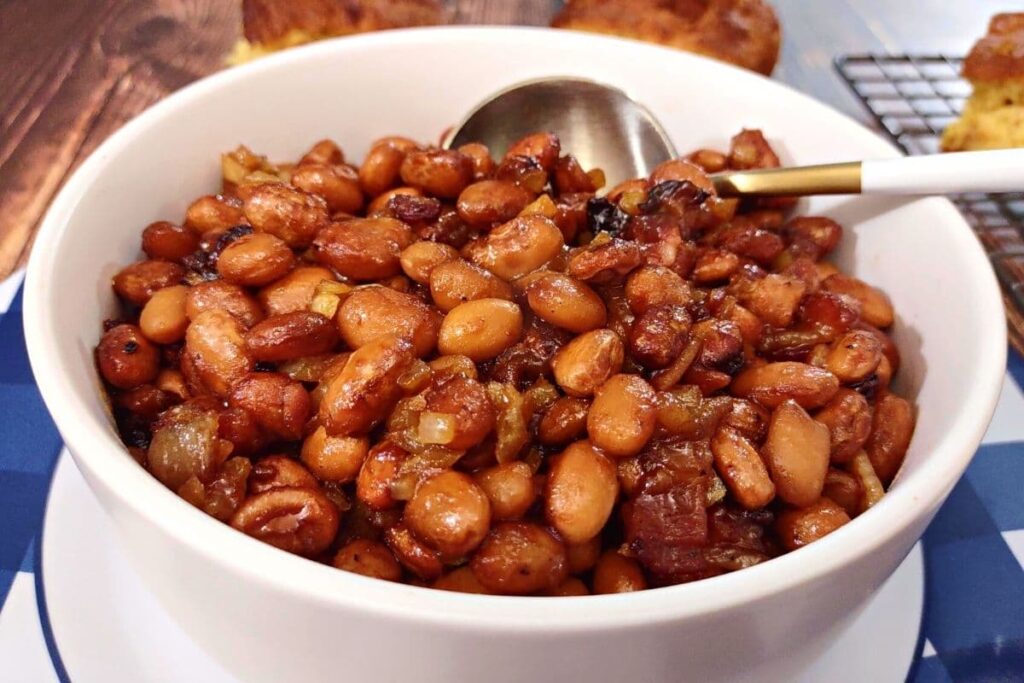
- Air Fryer Baked Beans (Boston Style)
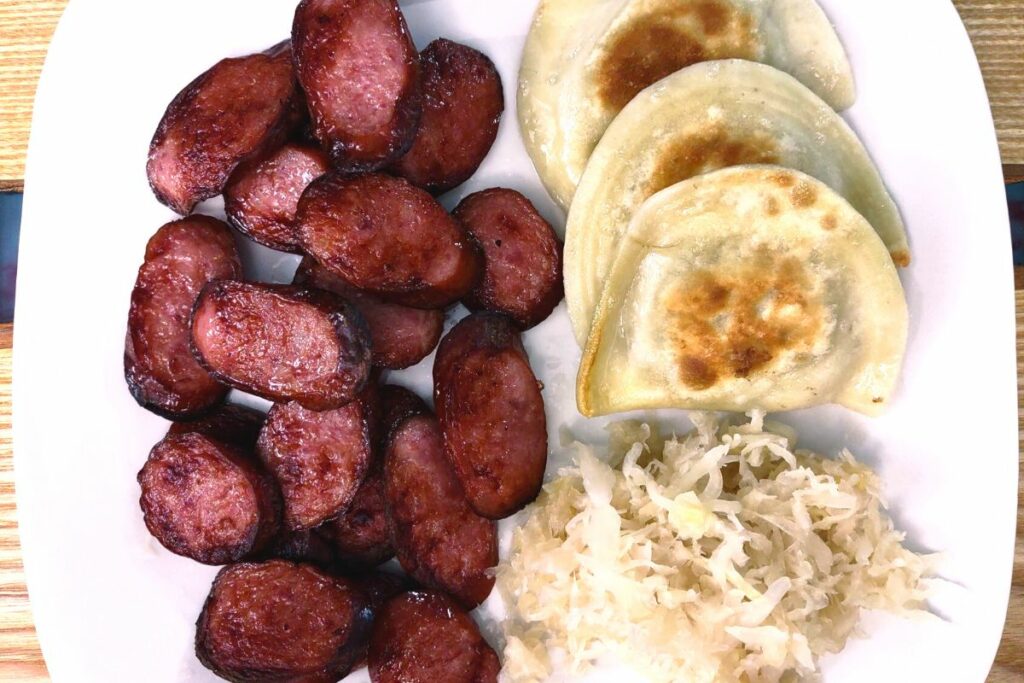
- Drool Worthy Air Fryer Kielbasa
- Quick Air Fryer Frozen Hamburgers
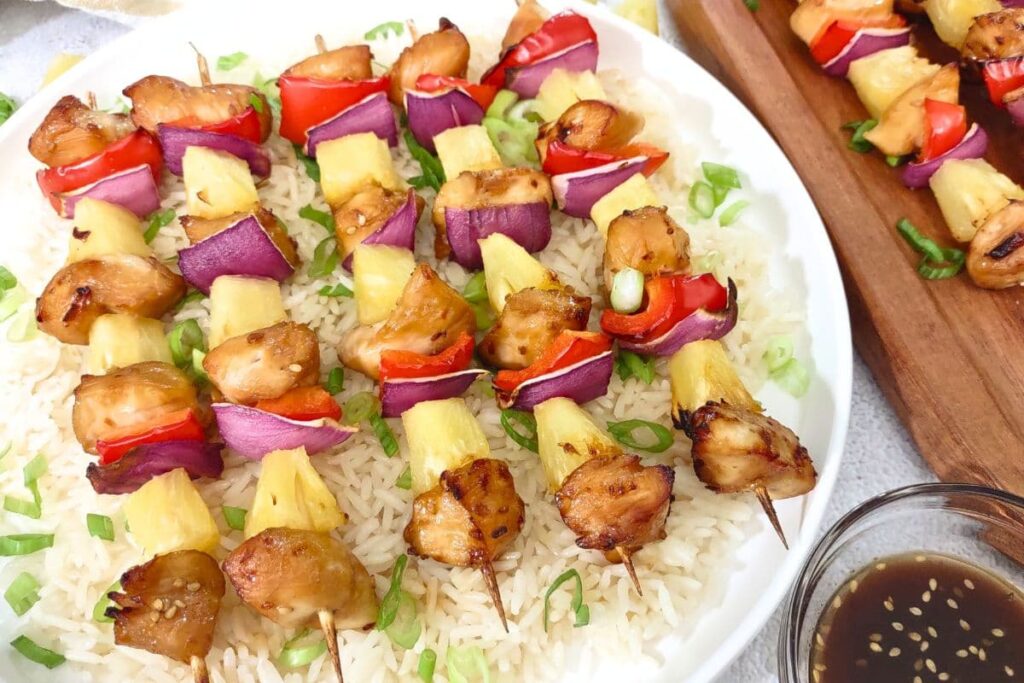
- Air Fryer Chicken Skewers
- Bacon Wrapped Brats in the Air Fryer
- Watermelon Basil Mojito
- Strawberry Coconut Mojito
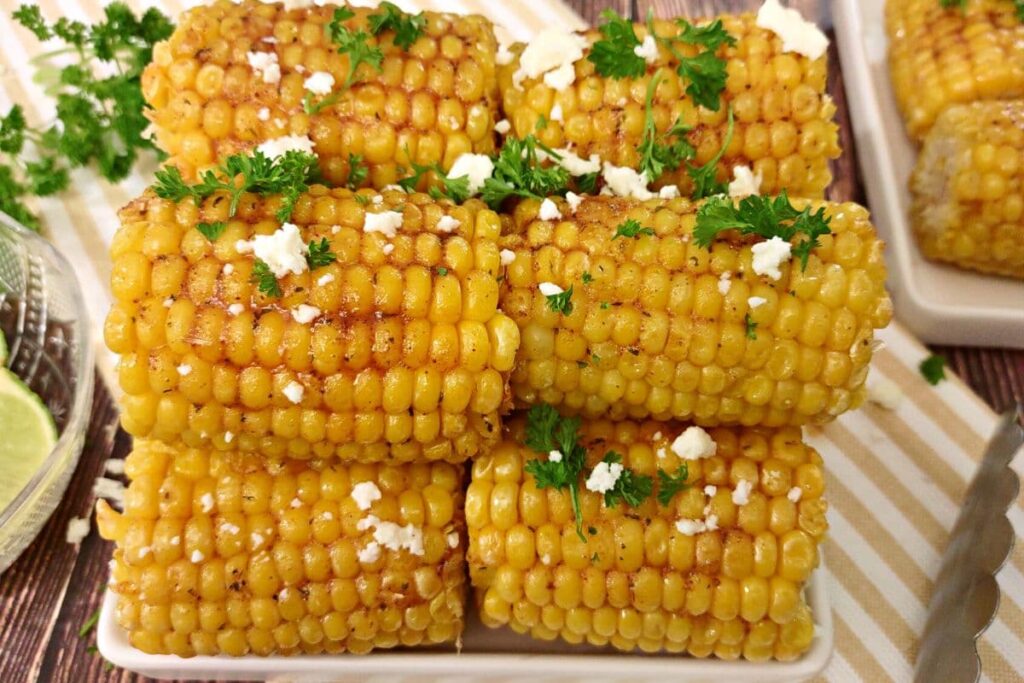


There’s just something really special about fresh produce, warm nights, good food, and the company of friends and family. Summertime is my favorite season, and for all good reasons!
Bread Bakers
Bread Bakers is a group of baking lovers that decide on a monthly theme or ingredient, and then bake up something delicious!
It’s such a nice way to check out new types of breads or experiment with different ingredients. Plus, if you’re anything like me when it comes to baking, it’s a great way to learn and get outside your comfort zone.
The yeast and I, we are not friends.
But, that doesn’t stop me from wanting to improve, and who doesn’t love some nice, warm bread with a meal? It’s my favorite with a cup of soup!
The PinterTest Kitchen had some delicious breads for sure, and you can find my newly inspired recipes here:
- Pretzel Bacon Cheeseburger Air Fryer Biscuit Bombs
- Air Fryer Homemade Pizza Rolls
I’ve also got some other easy breads for you to try (especially if you’re a new baker looking for simple, foolproof things to try):
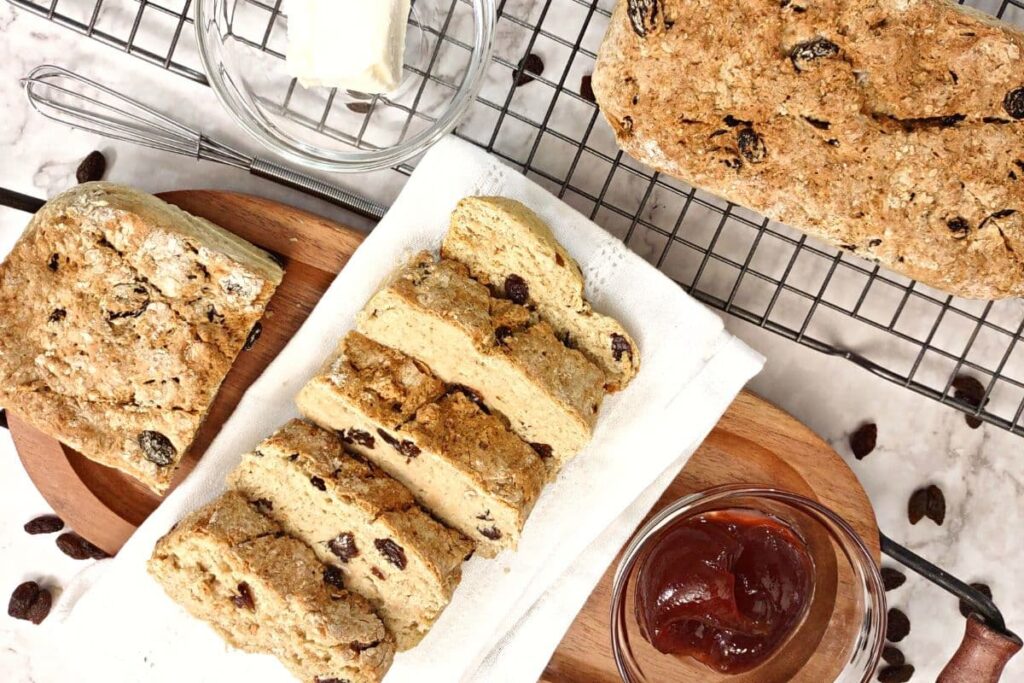
- Air Fryer Irish Soda Bread
- Jiffy Cornbread in the Air Fryer
- Easy Air Fryer Focaccia
- Lavash Bread Chips in the Air Fryer
- Air Fryer Pita Bread
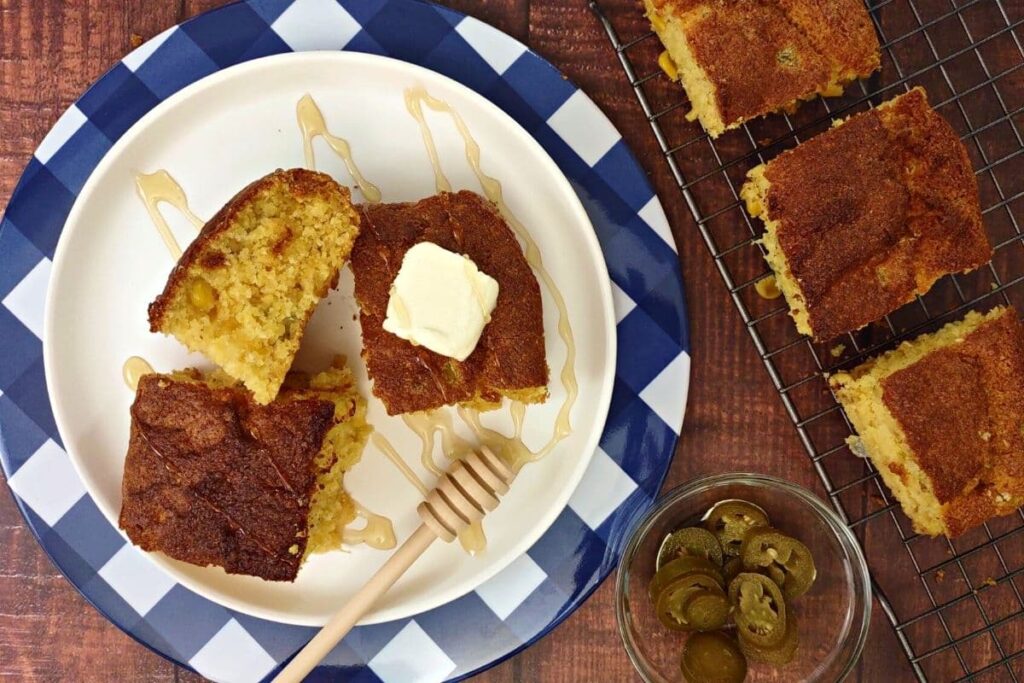
Of course, if you’re still feeling a bit in over your head, there are great frozen bread options that the air fryer makes perfectly. So, you can still enjoy bread without the fuss, like:
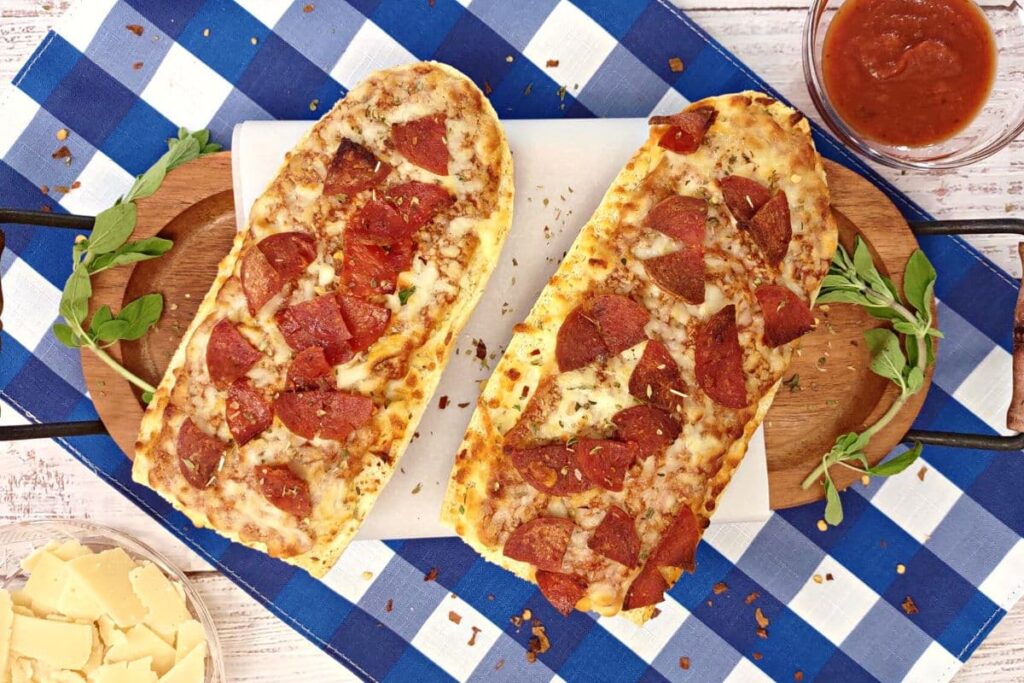
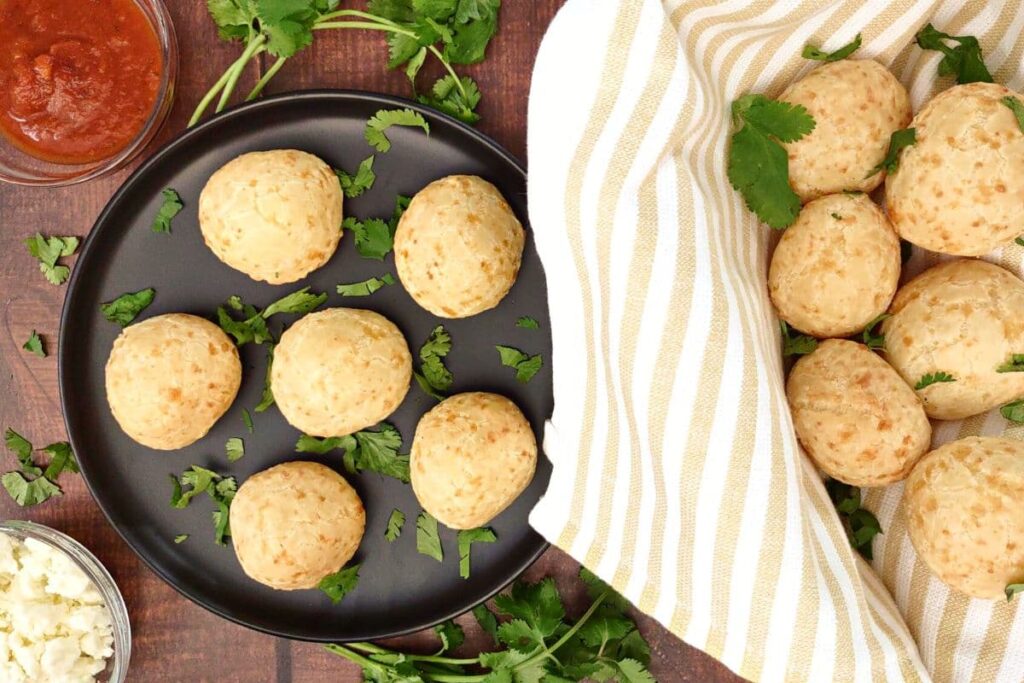
If you’re a lover of carbs like I am, make sure to check out my complete list of the best Air Fryer Bread Recipes for a variety of other great options!
Final Thoughts
While this compilation is in no way exhaustive, I hope you’ve come to know a little more about the PinterTest Kitchen and why we here at DinnersDoneQuick are grateful to have acquired the site.
I’ve still got plenty more recipes that I want to show to you in a new way! I also hope that you’ll find some new favorites along the way.
If you have a PinterTest Kitchen favorite recipe that you want to see again, contact us and let us know.
Feel free to follow us on social media to see all the great recipes both new and old that we publish every week.
You can find all our social channels in the “Keep in Touch” section on our about us page, or find the links on any of our recipes!
Happy cooking!

I enjoy trying new recipes, creating my own, and dabbling with new techniques all the time. My husband loves to protest when I make him my guinea pig, but it’s all for the love of food!
My cooking philosophy is that great tasting food doesn't have to be complicated or time consuming to make. I'm a home cook with over 20 years of experience feeding myself and others. I've learned from a variety of different people, things I've learned online, and some trial and error as well.
I enjoy cooking a variety of foods, from convenience to comfort foods, as well as international cuisine. You can rest assured that all of my recipes have been actually made, thoroughly tested, and most importantly: tasted! I want you to enjoy my food as much as I do!
- Air Fryer Patatas Bravas: Crispy Spanish Side or App! - April 13, 2024
- Crispy Trader Joe’s Chicken Taquitos in the Air Fryer - April 10, 2024
- Orange Strawberry Tequila Fizz: Bubbly Fruity Cocktail! - April 8, 2024
